Use the Gather Foraging Journal
How to use our integrated foraging journal feature to record and track your foraged finds!
Written By Jesse Feral Foraging
Last updated 7 months ago
Before you begin, ensure that you have updated your app to the latest version!
Accessing the journal
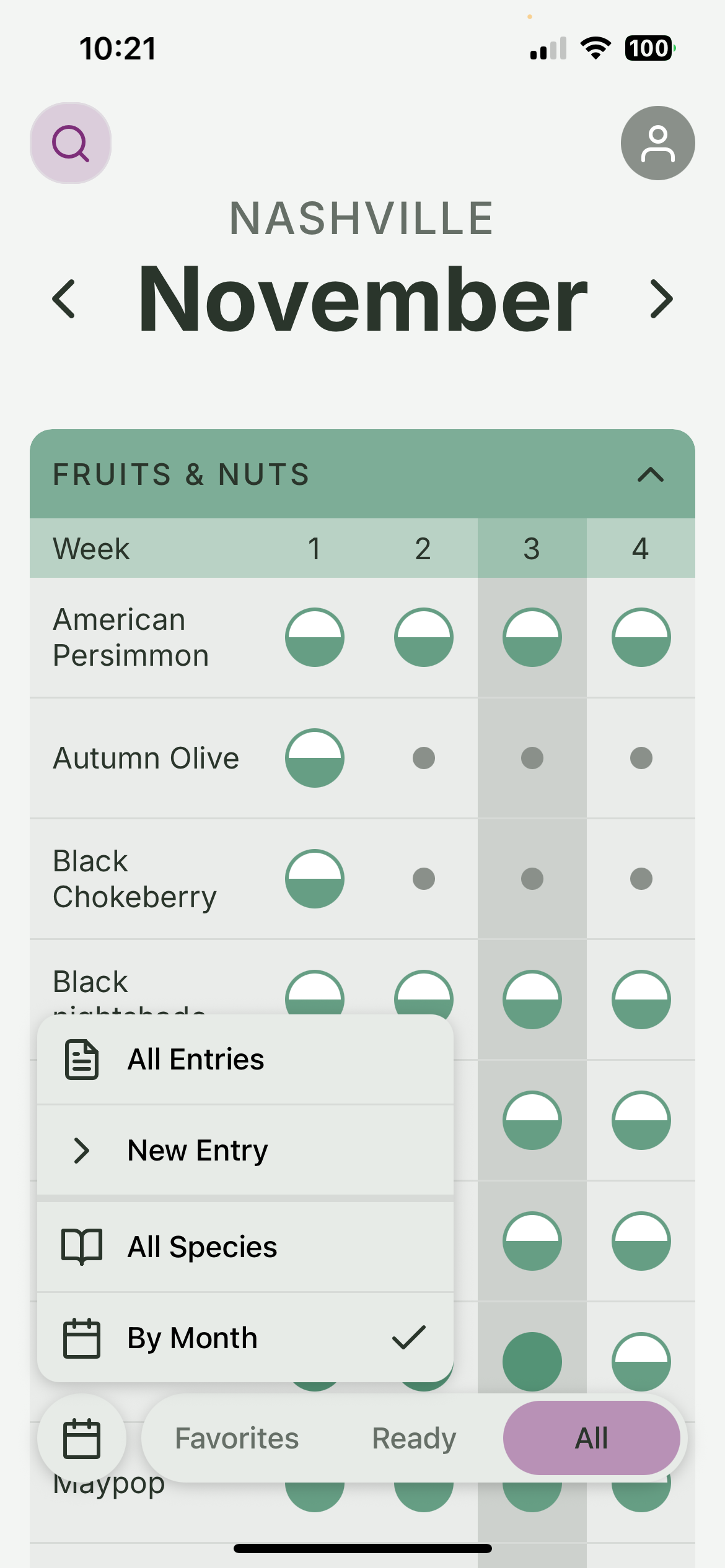
To access the journal, tap the bottom-left icon, which will display a menu. From there, you can select "All Entries" to view all your journal entries.
If this is your first time using the journal, you're just going to see a message saying "No Entries Added", so here is how to add your first one!
Adding a journal entry
Tap the "New Entry" button in the same menu where you accessed the journal.
You can use one of three options to create a new entry:
Photo: Select existing photo(s) from your gallery to create an entry based on those images. (See below for how to create an entry directly from your phone’s photo library)
Camera: Use this to take a new photo to create an entry of something you just found.
Write: This option allows you to create an entry without any photos if you don't have any media for it yet.
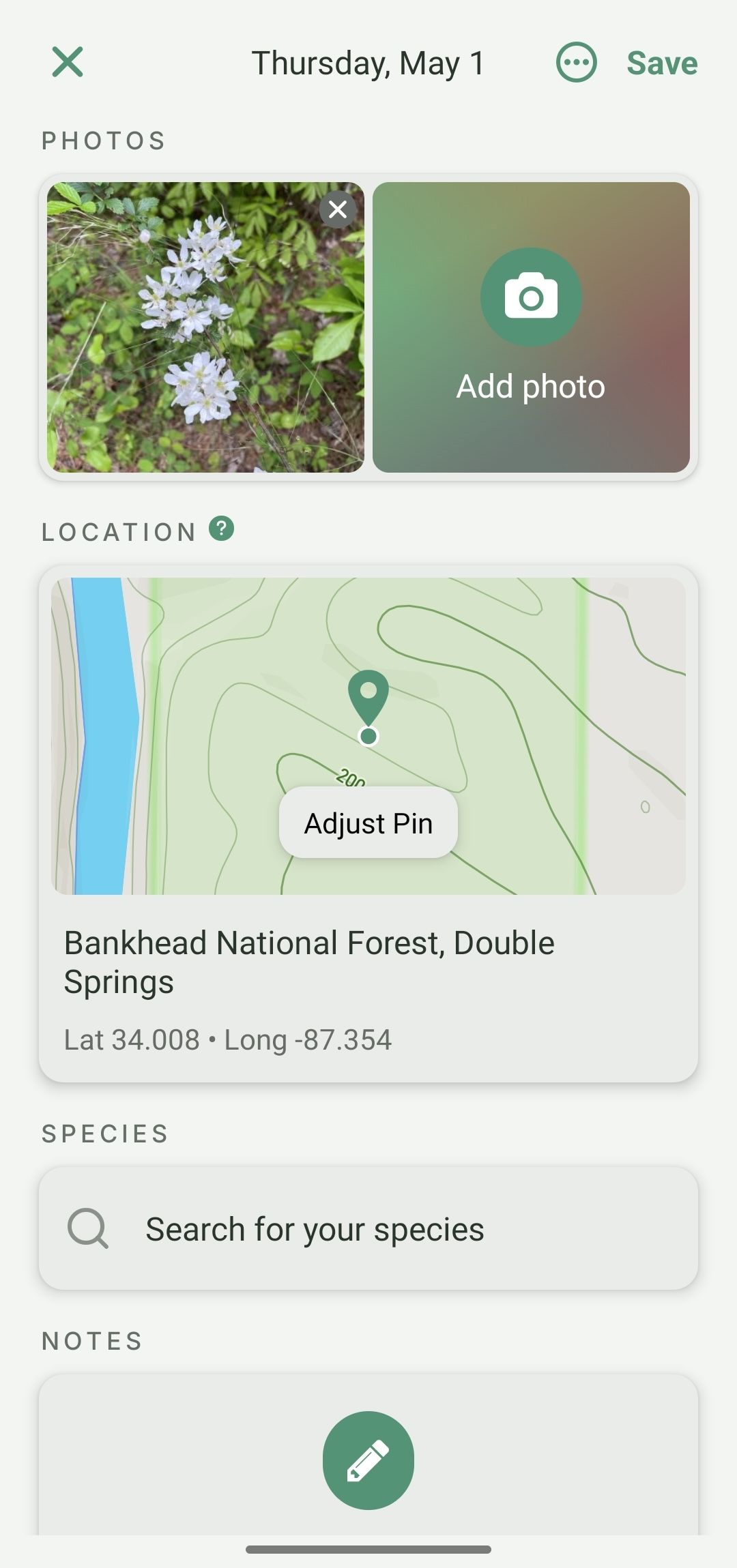
After choosing your entry method, you'll be taken to the entry creation page. Depending on your previous choice, some of the fields may already be filled out for you.
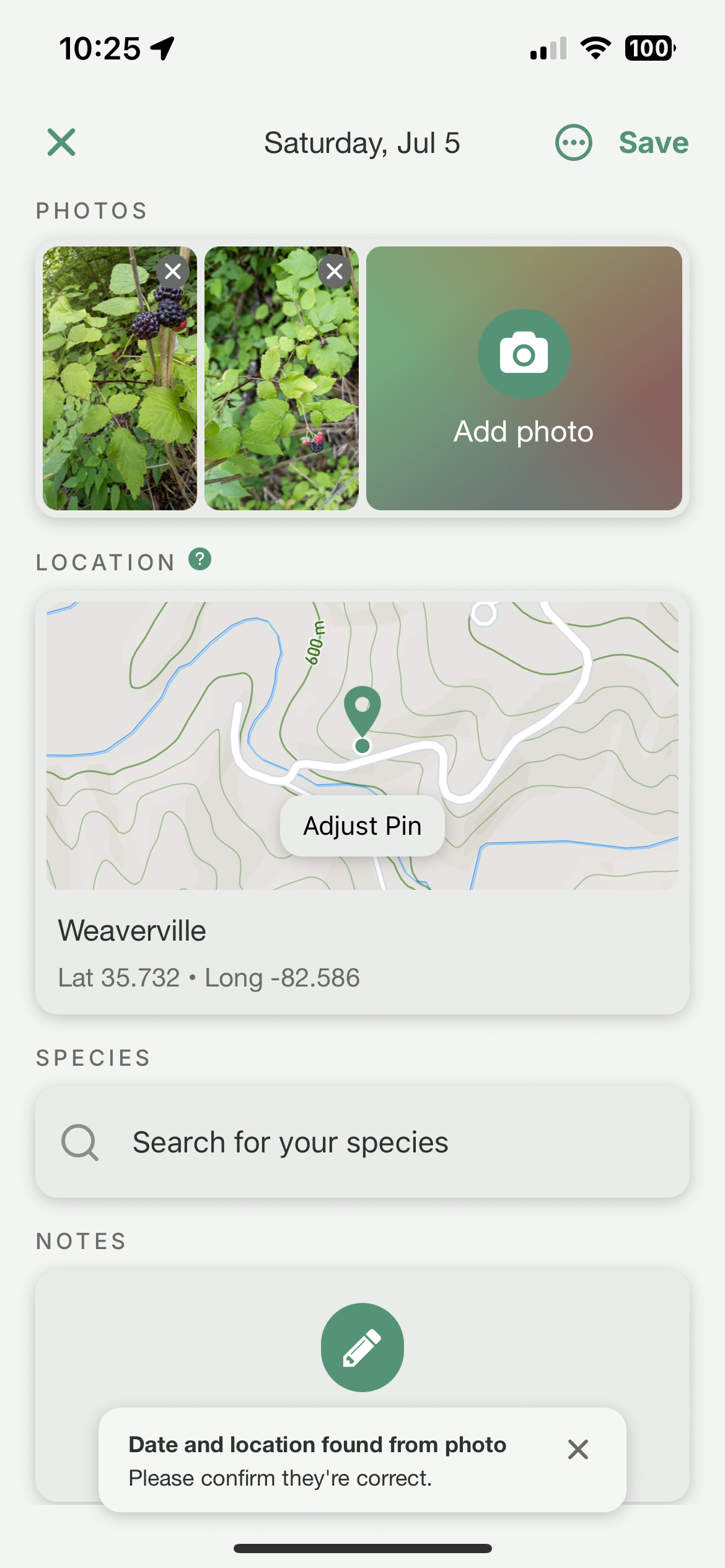
Date: The date of the entry is at the top of the screen. If you selected photos from the past, we will automatically set the date to when the photo was taken. You can always change the date by tapping the three-dot icon to the right of it.
Photos: The photos you added from the previous option, as well as the ability to add more. You can add up to 8 photos per entry.
Location: The location of your foraged find for this entry. This is private by default! In the future, we'll give you the option to share this with others, but for now, it is only visible to you. This will often be automatically filled from the photos that you selected, but you can also change it by tapping "Adjust Pin".
Species: The species of your foraged find. If you don't know, you can leave this blank, or if you know the genus, but not the species, you can select that instead. (e.g., you know it's a bramble berry, "Rubus," but not the exact species) Selecting the species unlocks the next two fields. (Note: we are looking into incorporating species recognition technology in the future to help with this step.)
Seasonal Stage: Here you can select the seasonal stage(s) that are present at the time of your find. For instance, if you found a raspberry that is fruiting, you can select "Fruit". You can also select multiple stages if applicable and specify the exact point of the stage with the next option.
Phase: This will appear after you have selected a seasonal stage. Here you can specify the phase of the seasonal stage(s) that you selected. For instance, if you found a wild strawberry, but it was green, you can select "Fruit" and specify the stage "Early". If it was fully ripe (the best time to forage), you can select "Peak", and if it was overripe, you can select "Late".
Notes: Finally, you can add any additional notes about your find here that you'd like to reference later.
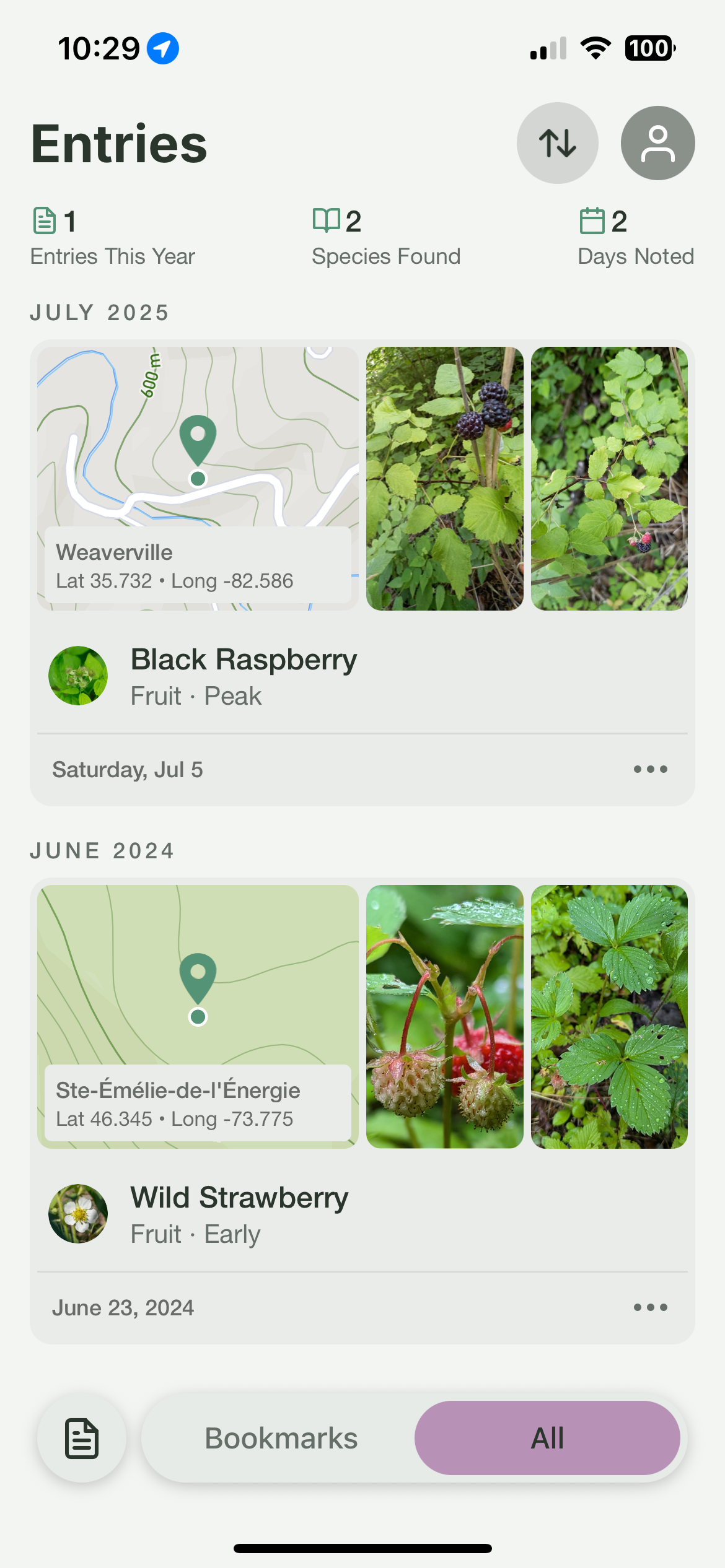
Once you have filled out all the fields you'd like, tap "Save" in the top right to save your entry! This will take you back to the journal entries page, where you can see your newly created entry along with any others you've made.
That's it! You've successfully created your first journal entry. You can always tap the three dots in the bottom right of any entry from the entries page to edit or delete it in the future if needed.
Here are some photos for the steps:
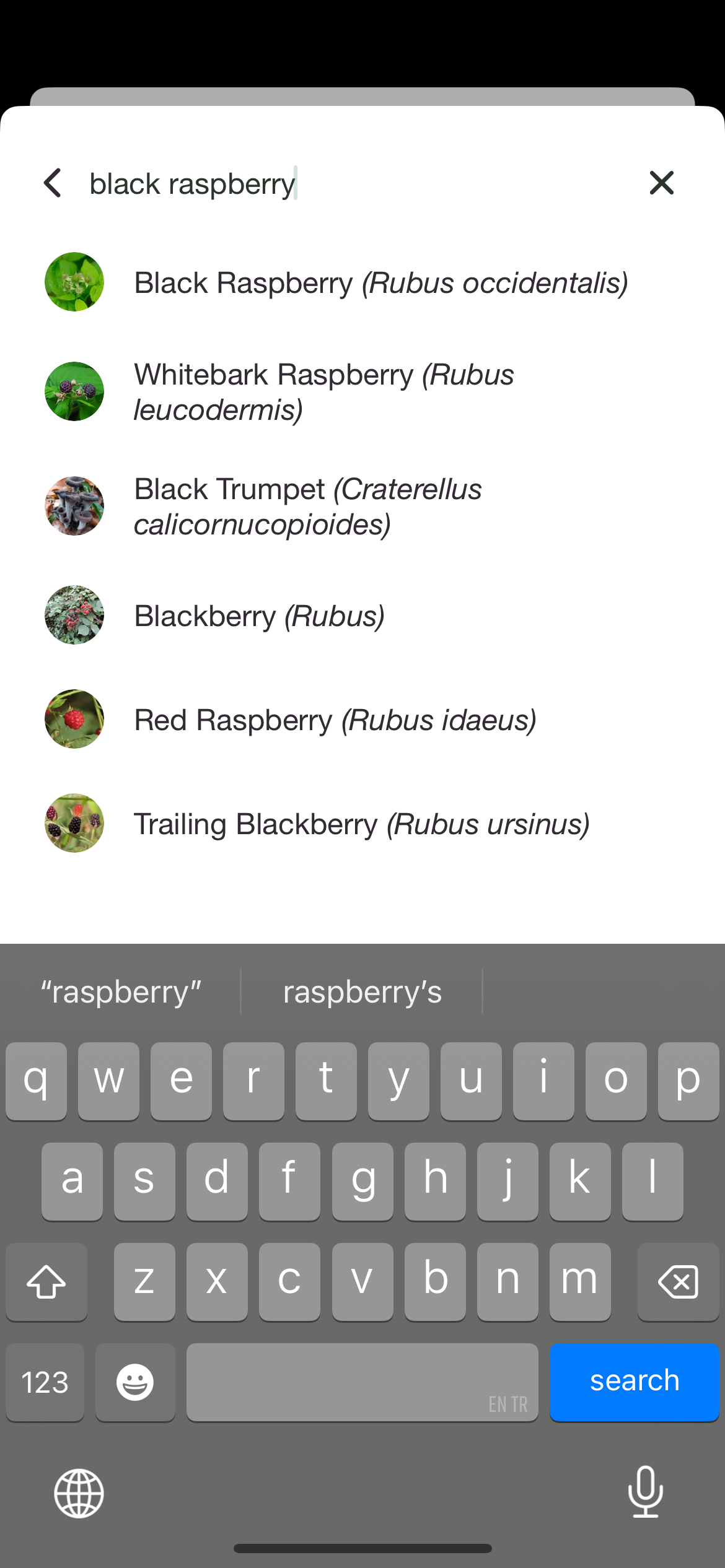
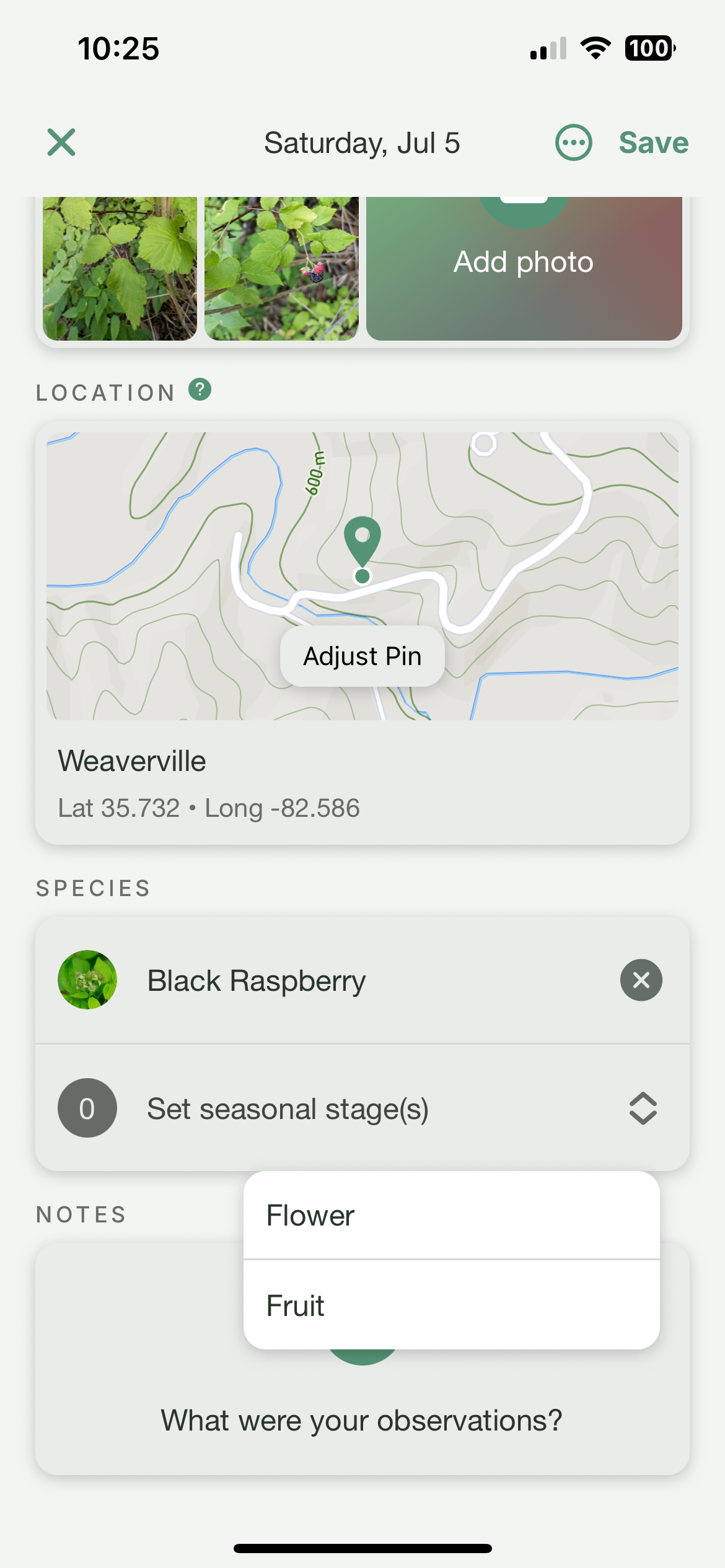
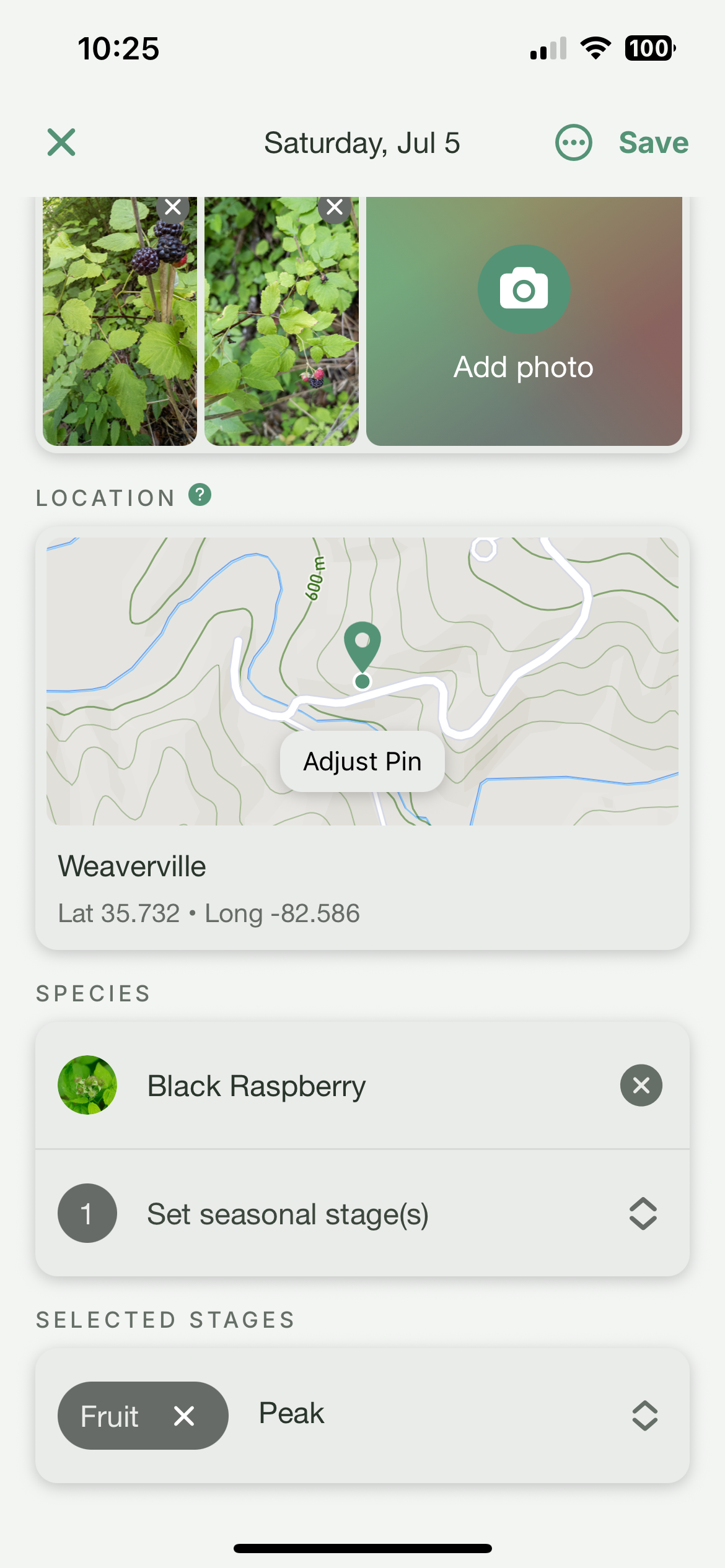
Adding an entry directly from your photo library
This is the best approach, especially if you are adding a lot of entries from the past (which we highly recommend!) On Android, this allows you to select multiple photos at once.
The reason is that you’ll not have to scroll back to the previous spot in your library for every entry you make. After creating one, you can simply go back to your photos app and you’ll be right where you left off! (Note on Android, use the Google Photos app as this will share the location metadata to Gather so it can be automatically added)
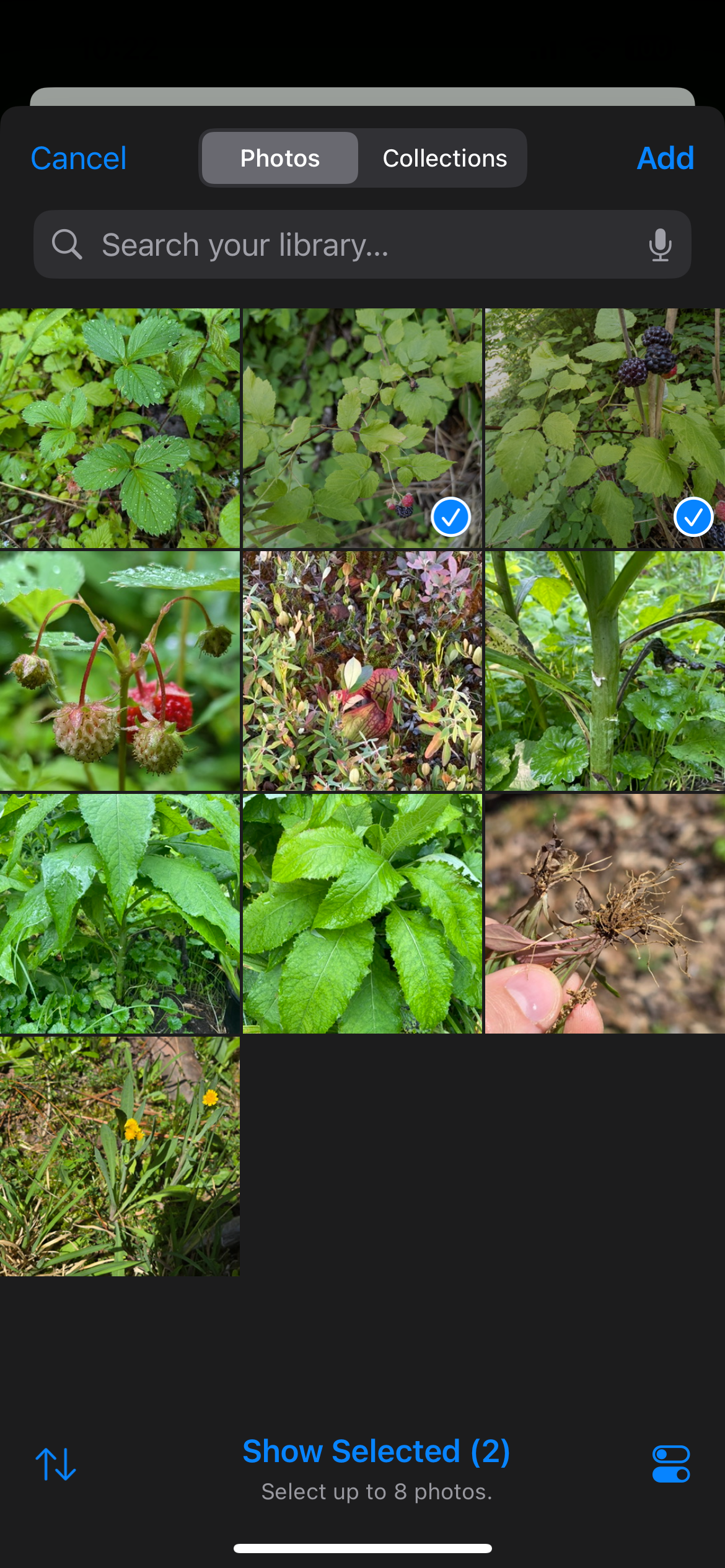
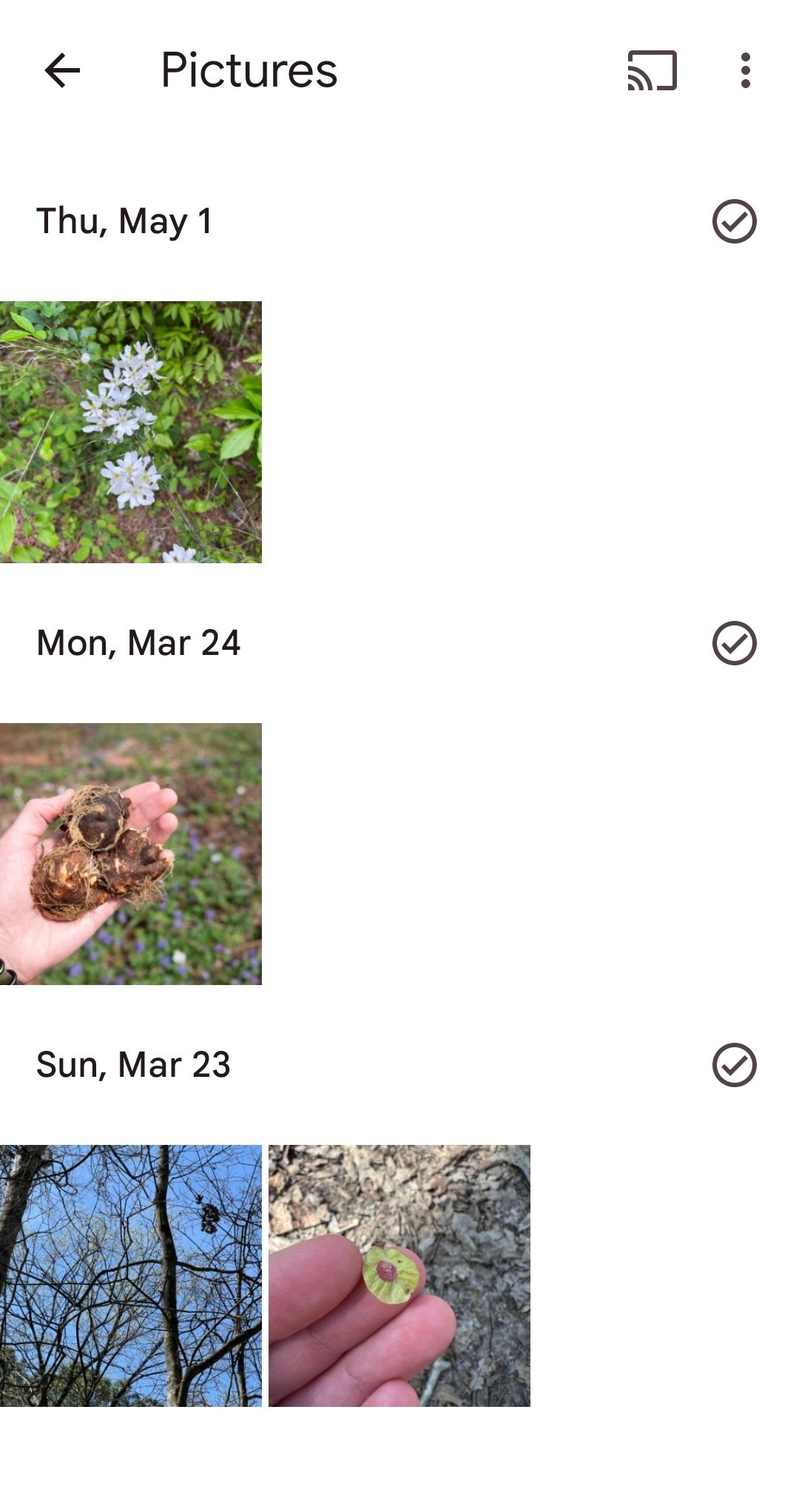
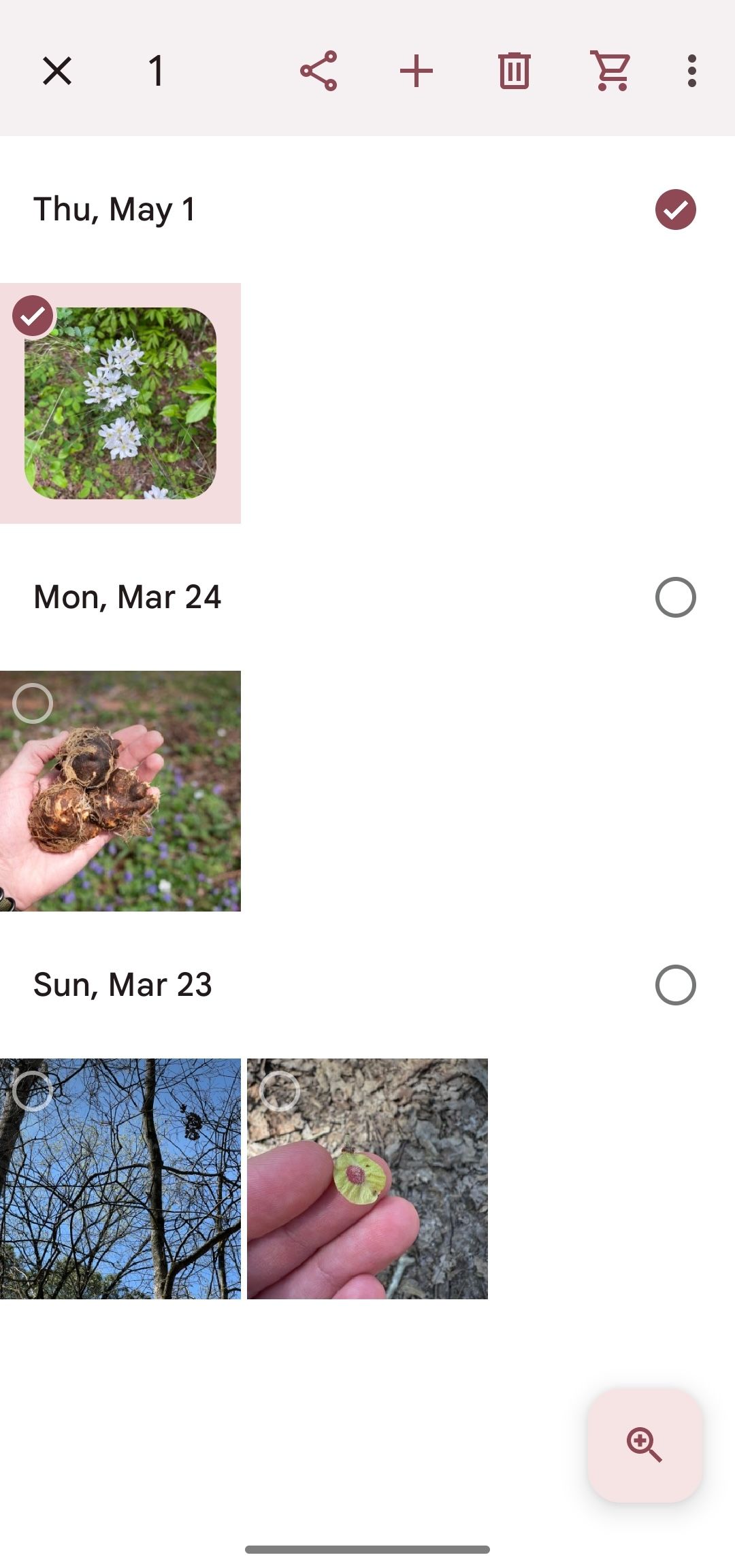
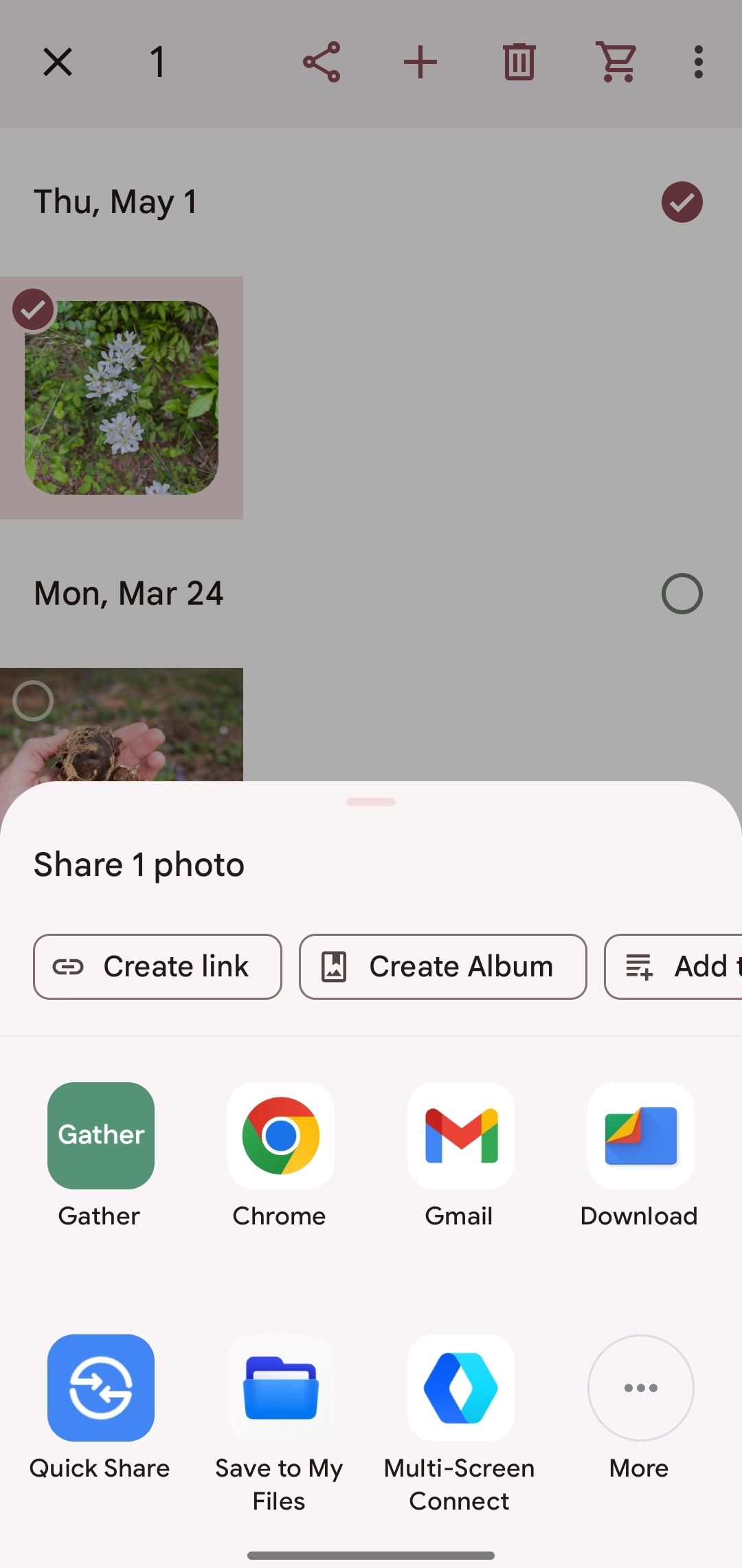
First, ensure that you have the Gather app open in the background and you aren’t in the middle of creating a different entry. Next, go to your photos app and simply select the photos that you’d like to use for a new entry (up to 8) and then press the ‘Share’ option. You may have to swipe or scroll to see it, but find the option for Gather.
This should redirect you to the Gather app, where it will then bring up the entry creation screen with the photos you selected. We’ll automatically detect the photo’s date and location if they were included in the metadata!
Our team has been adding new entries this way, and we think it’s the best! Below you can find screenshots for how to do this on Android, but it works the same on iOS.
Using the entry filters
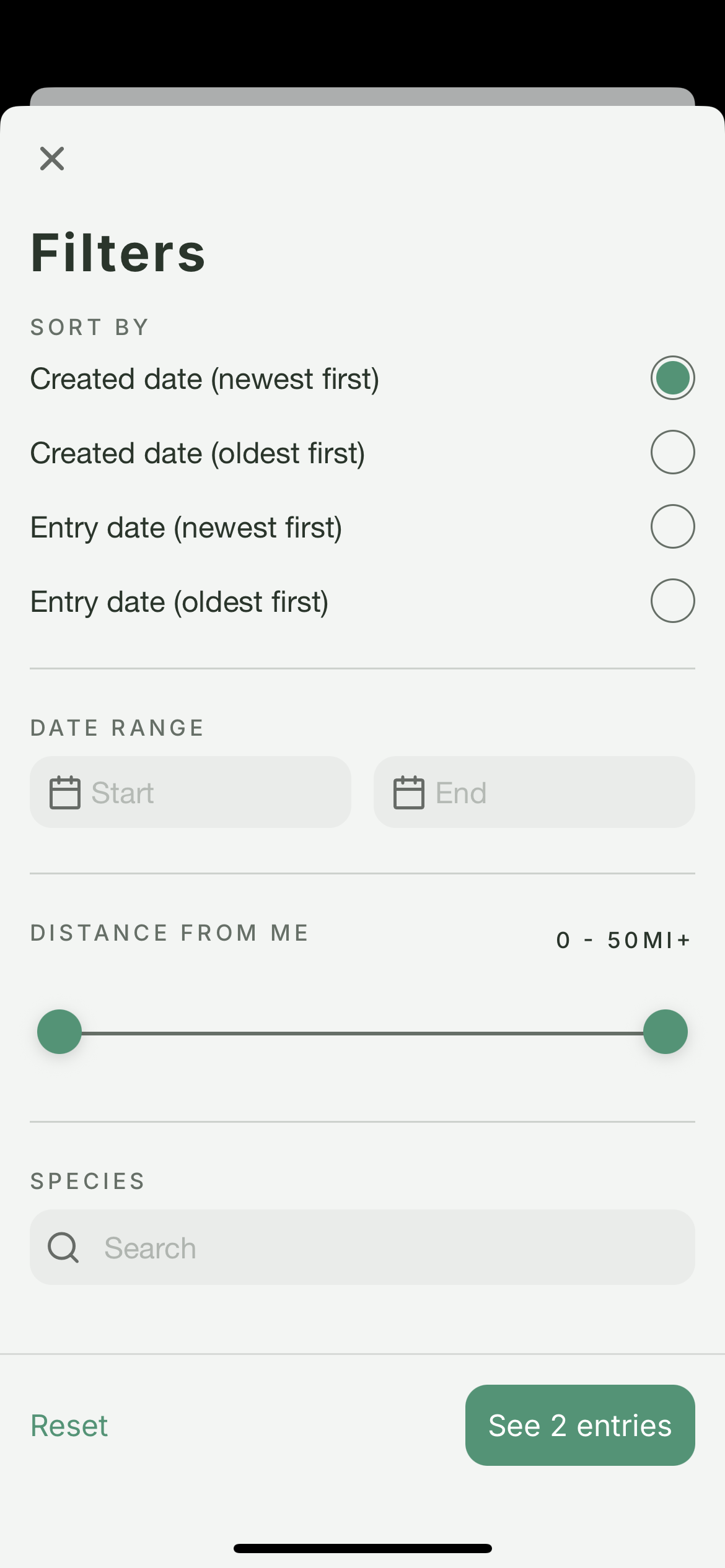
At any time, you can bookmark an entry and quickly use the "Bookmarks" filter at the bottom of the entries page to view only those entries, but we have far more filters available as well.
Sorting: From the filters page, you can also change the way that entries are sorted. By default, they'll be shown by the time that they were created, but you can also sort them by the time they occurred (the date of the entry).
Date Range: You can filter entries by a specific date range if you're looking for something from a particular time of year.
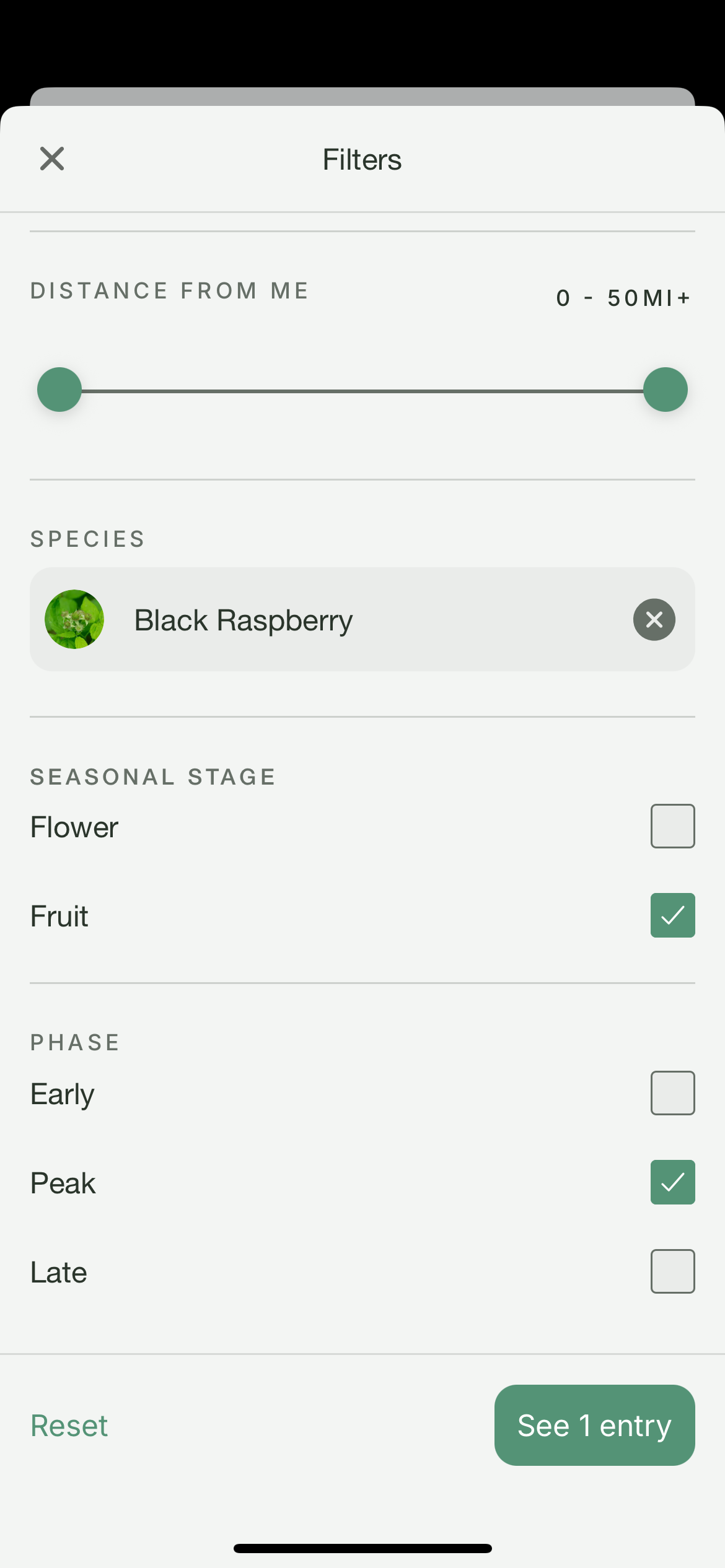
Distance From Me: Let's say you have traveled to one of your favorite foraging spots and you want to see what you've found in that area before. You can use this filter to show entries within a certain distance from your current location.
Species: If you want to see all the entries you've made for a particular species, use this filter. It will also unlock the following two filters.
Seasonal Stage: After selecting a species, you can filter entries by the seasonal stage(s) that were recorded for that species.
Phase: Finally, after selecting a species and a seasonal stage, you can filter entries by the phase of that seasonal stage.
One thing that I have been using the filters for a bunch is to see all the times that I found a particular species at the peak time for foraging in my area. It's been incredibly helpful to me, and I think it will be for you too!
Also, if you happen to add an entry and you see only the following seasonal stages: "Flowering, Fruiting, Vegetative, Underground Part", those are the default generic stages for a species for which we have specifically defined the seasons. So please let me know if you encounter that and with what species, so we can define them.
Of course, if you search for a species and cannot find it, definitely let us know that as well, so we can add it to our database! We worked hard to get in as many species as possible.
Why create journal entries?
Keeping a log of the foraged finds in your area is one of the most valuable things you can do to become a better forager! Over time, you won't be constantly searching for wild goods over and over, but rather, will be able to go back to the previous spots you have recorded!
In addition, these entries help us to improve our season prediction algorithm for your area! Our prediction can only be as good as the data that we have, and unfortunately, in many sparsely populated areas or places at the edge of a species’ range, we don't have the ability to make as accurate predictions. By logging your finds, you are helping to improve the app for everyone, but especially for yourself and the people in your local area.
Again, I want to stress that your journal entries and their locations ARE PRIVATE by default. It never leaves our platform, and we will never share it with anyone else without your explicit permission.
Foraging-first journaling capabilities simply do not exist anywhere else, so I'm glad that we were able to build this for you!
We show how many entries you have created on the entries page, so we can have a fun, informal competition to see who can add the most entries! I'll be posting about this in our social forums. Check them out from the Community area on your profile page in the app!
What's next?
We're calling this 'Phase 1' of the journal feature, but we have a lot more planned for the future! Below, I'd like to share with you what we have planned for Phases 2, 3, and beyond.
Phase 2: Phase 2 focuses on improving the mapping capabilities of the journal. Right now, you can see the location of each entry on a map individually, but in Phase 2, we will be adding a 'map view' so you can see all your entries on a single map along with all the filtering capabilities that you currently have!
This has been a highly requested feature from you guys, so we're working hard to get it out ASAP!
In addition, phase 2 will also include the ability to export entries. I am a firm believer that your data is your own, so we want to make sure that you can export it in a common format to use however you'd like.
Phase 3: Phase 3 will add social and community features to the journal. This will include the ability to share entries with friends or the public if you'd like to do so. (All entries are private right now and will remain private unless you explicitly change that)
If there are any other features you'd like to see in the journal, please let us know! You can reply to this email at any time. Also, I'd love to hear any feedback that you have on the journal feature so far. We worked hard to make it as useful and intuitive as possible, but are always looking to improve!
Was this helpful?
Still need help? Ask the team